
Table of Contents
The Stripe plugin requires two keys to validate all communication with Stripe:
- Secret Key: authenticates API requests.
- Webhook Signing Secret: verifies incoming webhook events.
Once both keys are added in the plugin settings, Mautic will be able to trust that events are real and not fraudulent.
Secret Key #
The Secret Key is your private credential used by the plugin to communicate with Stripe’s API.
You will need one for Test mode and one for Live mode:
- Go to your Stripe Dashboard.
- Navigate to Developers > API keys.
- Under Secret Key, click Reveal key and copy it.
- If you are in Test mode, you will see a
sk_test_...key. - If you are in Live mode, you will see a
sk_live_...key.
- If you are in Test mode, you will see a
The Live Secret Key can only be revealed once. If you lose it, you must generate a new one.
Now, you need to insert into your Mautic:
- Open Settings > Plugins > Stripe Plugin.
- Paste the key in the Secret Key field.
Webhook Signing Secret #
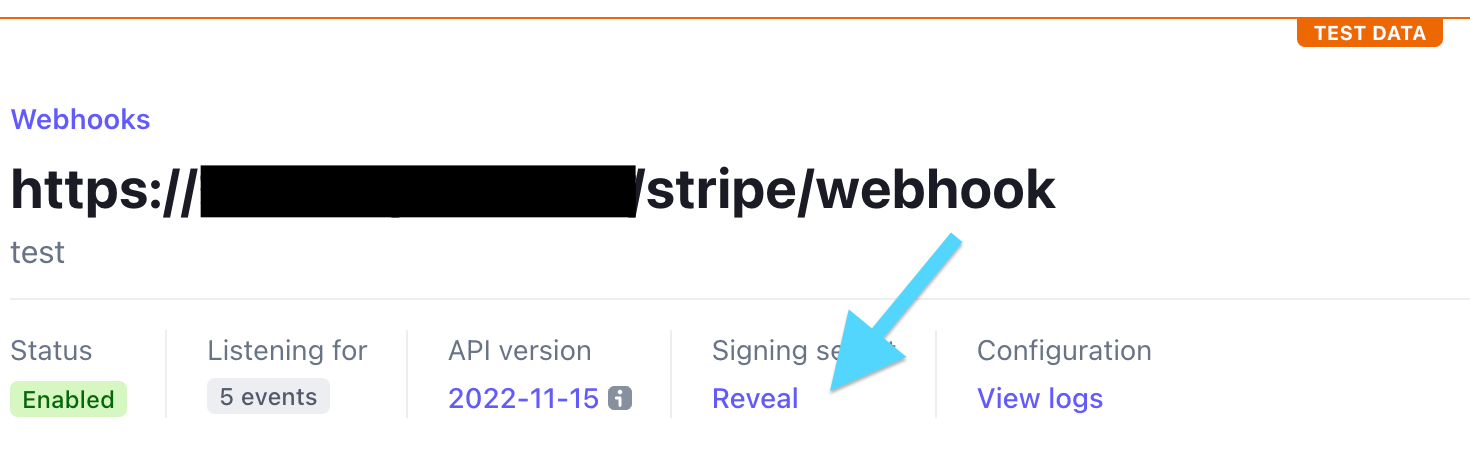
The Webhook Signing Secret is used to confirm that every event received at your Mautic endpoint was truly sent by Stripe. To get it:
- In your Stripe Dashboard, go to Developers > Webhooks.
- Open the endpoint that points to your Mautic instance (e.g.
https://yourmautic.com/stripe/webhook). - Scroll to Signing secret, click Reveal, and copy the value (
whsec_...).
Now, you need to insert into your Mautic:
- Open Settings > Plugins > Stripe Plugin.
- Paste the key in the Webhook Signing Secret field.
Activating the Plugin #
- In Mautic, go to Settings > Plugins > Stripe Plugin.
- Paste both keys: Secret Key and Webhook Signing Secret
- Choose the correct Mode (Test or Live).
- Enable the plugin and Save.
Once saved, all incoming events will be verified automatically by the plugin.